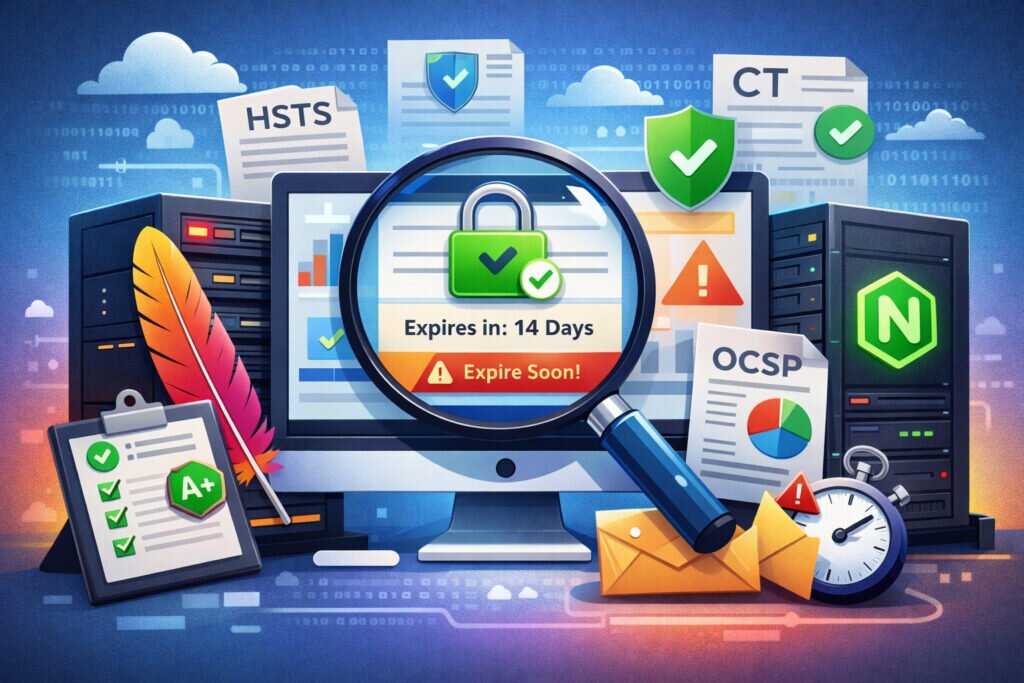
If you’re running Apache or Nginx — or both — you already know that SSL certificates aren’t something you set up once and forget. Monitoring SSL certificates on Apache and Nginx servers is one of those tasks that feels optional until a certificate expires at 2 AM on a Saturday and your site starts throwing browser warnings. Whether you manage a handful of servers or a fleet of them, this article walks you through practical ways to monitor your SSL setup, catch problems early, and avoid the kind of outages that erode user trust.
Why Server-Level SSL Monitoring Matters
Most sysadmins rely on calendar reminders or Let’s Encrypt’s auto-renewal and assume everything is fine. That works — until it doesn’t. Certbot silently fails because a webroot path changed after a config refactor. An Apache virtual host still references an old certificate file after a migration. Nginx picks up a cached cert from a stale symlink. These aren’t hypothetical scenarios; they’re Tuesday.
The problem is that your web server will happily serve an expired or misconfigured certificate without complaining. Apache and Nginx don’t alert you when a cert is about to expire. They just serve whatever’s in the config. That’s why external and automated monitoring isn’t optional — it’s the safety net your server doesn’t provide.
Checking SSL Certificates Manually on Apache
On an Apache server, your SSL configuration typically lives in the virtual host file. The key directives to check are SSLCertificateFile, SSLCertificateKeyFile, and SSLCertificateChainFile (or SSLCACertificateFile depending on your version).
To check the expiration date of the certificate Apache is currently serving, use OpenSSL from the command line:
openssl x509 -enddate -noout -in /etc/ssl/certs/your-domain.crt
This gives you the raw expiration date. To check what the server is actually presenting to clients — which can differ if your config is wrong — connect remotely:
echo | openssl s_client -servername yourdomain.com -connect yourdomain.com:443 2>/dev/null | openssl x509 -noout -dates
That second command is more reliable because it tests the live handshake, not just a file on disk. If there’s a mismatch between what’s on disk and what’s being served, you’ve found a config issue.
You should also verify the certificate chain is complete. An incomplete chain is one of the most common issues on Apache, especially after manual cert installations. A quick way to check:
openssl s_client -connect yourdomain.com:443 -servername yourdomain.com
Look at the certificate chain output. If you see “verify error:num=21:unable to verify the first certificate,” your chain is broken. For a deeper dive, see how to detect and resolve certificate chain issues.
Checking SSL Certificates Manually on Nginx
Nginx handles SSL similarly, but the config syntax differs. Look for ssl_certificate and ssl_certificate_key in your server block. One key difference: Nginx expects the full chain bundled into a single file (your cert + intermediates), while Apache traditionally uses separate directives.
The same OpenSSL commands work for checking Nginx-served certificates. But here’s a gotcha that catches people: if you update the certificate file but forget to reload Nginx, the old cert stays in memory. Unlike Apache with graceful restarts, Nginx requires an explicit reload:
nginx -t && systemctl reload nginx
Always test the config before reloading. A syntax error in one server block can take down SSL for every site on that instance.
Automating SSL Monitoring with Scripts
Manual checks are fine for a couple of servers. Once you’re past five or ten, you need automation. A basic bash script can check expiration dates and alert you:
EXPIRY=$(echo | openssl s_client -servername “$DOMAIN” -connect “$DOMAIN”:443 2>/dev/null | openssl x509 -noout -enddate | cut -d= -f2)
EXPIRY_EPOCH=$(date -d “$EXPIRY” +%s)
NOW_EPOCH=$(date +%s)
DAYS_LEFT=$(( (EXPIRY_EPOCH – NOW_EPOCH) / 86400 ))
Throw that in a cron job, add an email or Slack notification when DAYS_LEFT drops below 30, and you’ve got basic monitoring. But basic is the operative word — this won’t catch chain issues, HSTS misconfigurations, OCSP stapling failures, or mixed content problems.
The Myth: “Auto-Renewal Means I Don’t Need Monitoring”
This is the most dangerous misconception in SSL management. Let’s Encrypt auto-renewal through Certbot works great — when everything is configured correctly. But renewal failures happen silently more often than you’d think. DNS changes, permission issues on the .well-known directory, a firewall rule that blocks the ACME challenge, a server migration where the cron job didn’t come along — any of these will cause a silent failure.
I’ve seen setups where Certbot hadn’t actually renewed a certificate in three months because the post-hook that restarts Apache was pointing to the wrong service name. The cert file on disk was updated, but Apache was still serving the old one from memory. No errors in the Certbot log. No alerts. Just a ticking clock.
Auto-renewal is a mechanism, not a guarantee. You still need something watching the actual live certificate your server presents to the world. That’s what preventing SSL certificate renewal failures is really about.
Moving Beyond DIY: Dedicated SSL Monitoring
Scripts and cron jobs get you started, but they have blind spots. They won’t catch a certificate that’s valid but has a weak signature algorithm. They won’t verify Certificate Transparency log presence. They won’t monitor HSTS headers or grade your overall SSL posture.
SSLVigil handles all of this from the outside — the same perspective your users have. It checks your certificate status around the clock, sends advance warnings at 30, 14, 7, and 1 day before expiration, and monitors the full certificate chain, OCSP compliance, and HSTS configuration. You also get a monthly security report with an A+ to F grade, which is useful both for your own tracking and for reporting to stakeholders.
For a step-by-step walkthrough of getting this running, check how to set up automated SSL certificate monitoring in minutes.
Monitoring SSL Handshake Failures
One thing that often gets overlooked is monitoring for SSL handshake failures. These happen when a client can’t negotiate a secure connection — maybe because of a protocol mismatch, a missing intermediate cert, or an SNI misconfiguration on a shared server. Apache and Nginx log these differently, and they’re easy to miss in noisy log files.
On Nginx, look for “SSL_do_handshake() failed” in your error log. On Apache, enable LogLevel info for mod_ssl and watch for “SSL Library Error” entries. For a more thorough approach to catching these, see understanding SSL handshake failures and how to monitor them.
FAQ
Can I monitor SSL certificates on both Apache and Nginx from a single tool?
Yes. Since SSL monitoring works by connecting to your server from the outside and inspecting the certificate presented during the TLS handshake, it doesn’t matter which web server software you run. SSLVigil monitors the live certificate regardless of whether it’s served by Apache, Nginx, or anything else.
How often should I check my SSL certificates on production servers?
Daily checks are a reasonable minimum for scripts and cron jobs. A dedicated monitoring service like SSLVigil checks continuously and sends alerts at multiple intervals before expiration, which is more reliable than a once-a-day cron.
What’s the fastest way to check if Nginx is serving the correct certificate?
Run: echo | openssl s_client -servername yourdomain.com -connect yourdomain.com:443 2>/dev/null | openssl x509 -noout -subject -dates. This shows you the subject (domain) and validity dates of the certificate the server is actually presenting, which may differ from the file on disk if Nginx hasn’t been reloaded.
The bottom line: your web server won’t tell you when something’s wrong with your SSL setup. Whether you start with a bash script or go straight to a monitoring service, the important thing is that something other than your users catches the problem first.