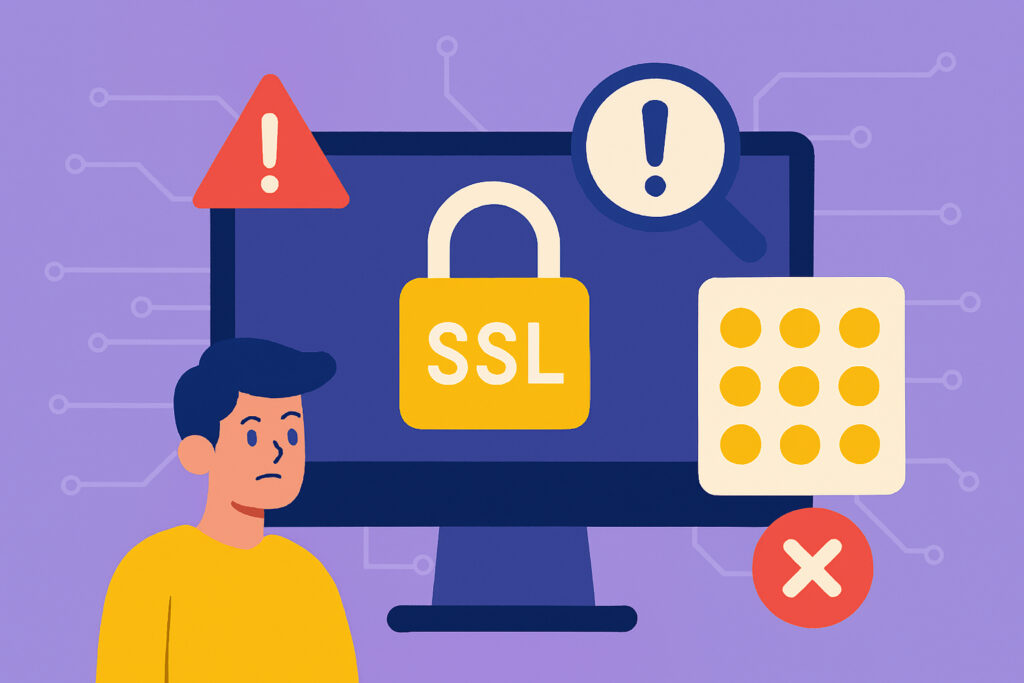
You’ve probably seen those browser warnings: “Your connection is not private” or “This site is not secure.” For visitors landing on your website, these common SSL certificate mistakes are instant trust-killers. Most will hit the back button before you even know they were there. The frustrating part? Many of these SSL certificate problems are completely preventable.
I’ve been monitoring SSL certificates for websites across different industries, and I keep seeing the same mistakes pop up again and again. These aren’t just technical nuances that only affect security experts – they’re real issues that can cost you customers, damage your reputation, and even get you flagged by search engines. Let’s walk through the five most common SSL mistakes and, more importantly, how to avoid them.
Letting Your Certificate Expire Without Warning
This is hands down the most common SSL mistake I encounter. Your certificate has an expiration date, typically after one year, and if you don’t renew it in time, your website becomes inaccessible to visitors. Browsers will throw up aggressive warning screens, and many users won’t risk proceeding.
The problem usually isn’t forgetting about renewal entirely – it’s that the renewal happens at the wrong level of your organization or the notification emails go to an old address that nobody checks anymore. I’ve seen businesses lose significant revenue because their certificate expired on a Friday afternoon and nobody noticed until Monday morning.
The solution is straightforward: set up proper monitoring that checks your certificate status daily and alerts you well before expiration. Ideally, you want warnings starting at 30 days out, then again at 14 days, 7 days, and daily in that final week. If you’re unsure what causes SSL certificate errors, expired certificates are almost always at the top of the list.
Using Self-Signed Certificates on Production Sites
I get it – self-signed certificates are free and easy to generate. They’re perfect for development environments or internal testing. But they have no place on a public-facing production website.
Here’s a common myth worth busting: some people believe self-signed certificates provide the same encryption as CA-issued certificates, so they’re “just as secure.” Technically, the encryption itself is identical. But security isn’t just about encryption – it’s about trust. When you use a self-signed certificate, there’s no trusted Certificate Authority vouching for your website’s identity. Browsers rightfully treat this as suspicious and show warning messages. Your customers will see “potential security risk” and assume your site might be compromised or fake.
Legitimate SSL certificates are now either very affordable or completely free through services like Let’s Encrypt. There’s simply no reason to use self-signed certificates on production websites anymore.
Incomplete Certificate Chain Installation
This one trips up a lot of website owners. SSL certificates work on a chain of trust – your certificate needs to link back to a trusted root certificate through intermediate certificates. If you only install your primary certificate without the intermediates, some browsers and devices won’t be able to verify the trust chain.
The symptoms are sneaky. Your website might work fine in Chrome on your desktop but fail on older smartphones or certain browsers. About a year ago, I worked with an e-commerce site that was mysteriously losing mobile customers during checkout. Turned out their intermediate certificate wasn’t properly installed, and mobile browsers were showing security errors that desktop browsers handled gracefully.
When you install an SSL certificate, always verify that you’ve included the full certificate chain. Most Certificate Authorities provide a “bundle” or “chain” file. For a deeper dive into diagnosing these problems, check out how to detect and resolve certificate chain issues.
Ignoring Mixed Content Warnings
You’ve installed your SSL certificate, and your website loads with that reassuring padlock icon. Perfect, right? Not necessarily. If your HTTPS pages are loading images, scripts, or other resources over HTTP, you’ve got mixed content issues.
Modern browsers handle mixed content in different ways. Some block insecure resources entirely, breaking your site’s functionality. Others show a “not secure” warning even though you have a valid certificate. Either way, you’re undermining the security you paid for.
This commonly happens after migrating from HTTP to HTTPS. Your pages are secure, but somewhere in your code or database, old HTTP links to images, CSS files, or JavaScript libraries remain. The fix requires hunting down and updating all these references. Browser developer tools can help, and there are ways to detect SSL mixed content warnings before your users do. Once cleaned up, implement Content Security Policy headers to prevent mixed content from sneaking back in.
Using Certificates on the Wrong Domain or Subdomain
SSL certificates are issued for specific domain names. If you have a certificate for “www.example.com” but someone visits “example.com” without the www, they might get a security warning. Or if your certificate covers your main domain but not subdomains like “shop.example.com,” you’ve got problems.
This mistake often happens when businesses expand their web presence without updating their SSL strategy. You start with a simple website, add a blog on a subdomain, then an online shop on another, and suddenly you’re juggling multiple certificates or leaving some properties unprotected.
For most businesses, a wildcard certificate covering your domain and all its subdomains makes sense. If you have multiple distinct domains, you might need separate certificates or a multi-domain certificate. Learn more about how to monitor wildcard SSL certificates across subdomains to keep everything covered.
FAQ
How often should I check my SSL certificates for these mistakes?
At minimum, run a full check whenever you make changes to your server configuration or add new domains. Ideally, use automated SSL monitoring that checks daily – this catches expiration issues, chain problems, and mixed content before they affect visitors.
Can a free SSL certificate from Let’s Encrypt cause any of these mistakes?
Let’s Encrypt certificates are just as valid as paid ones for encryption and browser trust. However, they expire every 90 days instead of annually, which makes automated renewal and monitoring even more important. The shorter validity period actually reduces risk if your automation is set up correctly.
My site shows a padlock icon – does that mean I have no SSL issues?
Not necessarily. The padlock confirms your primary certificate is valid, but it doesn’t guarantee your certificate chain is complete, that all resources load over HTTPS, or that subdomains are properly covered. A comprehensive SSL check goes well beyond the padlock.
Staying Protected: A Continuous Process
SSL certificate management isn’t a one-time setup task. It requires ongoing attention to expiration dates, proper configuration, and adapting to new security standards. Once you have proper monitoring in place, most of these issues become easy to catch before they affect your visitors. Automated monitoring catches expiring certificates, configuration issues, and other SSL problems before they impact your business – moving you from reactive firefighting to proactive prevention.